
How to Hide Blue Ticks on GB WhatsApp Latest Version
Many people want to see messages of their contacts without letting them know that they’ve seen them by hiding blue ticks. It might be because of don’t feeling like replying right away or wishing to keep their chats private using GB WhatsApp’s privacy features.
Well, we’ll guide you how to hide blue ticks on GB WhatsApp in simple steps! To hide blue ticks, navigate to the GBSettings → Privacy and Security → contacts → click the hide blue ticks option → click OK button to enable it. Furthermore, let us take a deep dive into what blue-ticks in GB WhatsApp are and even more detailed procedure.

What are Blue Ticks in GB WhatsApp
Blue Ticks in GB WhatsApp refers to the message that you’ve sent to your family member, friend or others who has seen it. GB WhatsApp provides its users with an option to hide these blue ticks, preventing anyone else from knowing you’ve seen their messages.
How to Hide Blue Ticks on GB WhatsApp
Step 1: Open GB WhatsApp on your mobile device and navigate to the GBSettings option by clicking 3 dots in the upper right corner to hide blue ticks.
Step 2: Click the “Privacy and Security” option to proceed to the next step.

Step 3: Here you’ll have 4 options to go with including; Contacts, Groups, Broadcasts, Custom Privacy. If you want to hide blue ticks for your contact, simply click “contacts” option and tap the “Hide Blue Tick” option to freeze it. Same goes for the groups and broadcast.
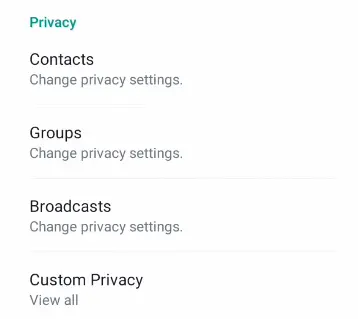

Now, you’ve hidden blue ticks on GB WhatsApp. Now, you’ve successfully hidden blue-ticks and they will not appear until you reply to anyone’s message.
This article was about hiding blue ticks of GB WhatsApp. We’ve described the procedure of hiding blue ticks in detail. If you’ve questions about hiding blue ticks on GB WhatsApp, simply leave a comment.